Bulk delete ChatGPT and Claude chats
Clear out dozens of old conversations in one action instead of one at a time. Multi-select, confirm, done — free on both platforms.
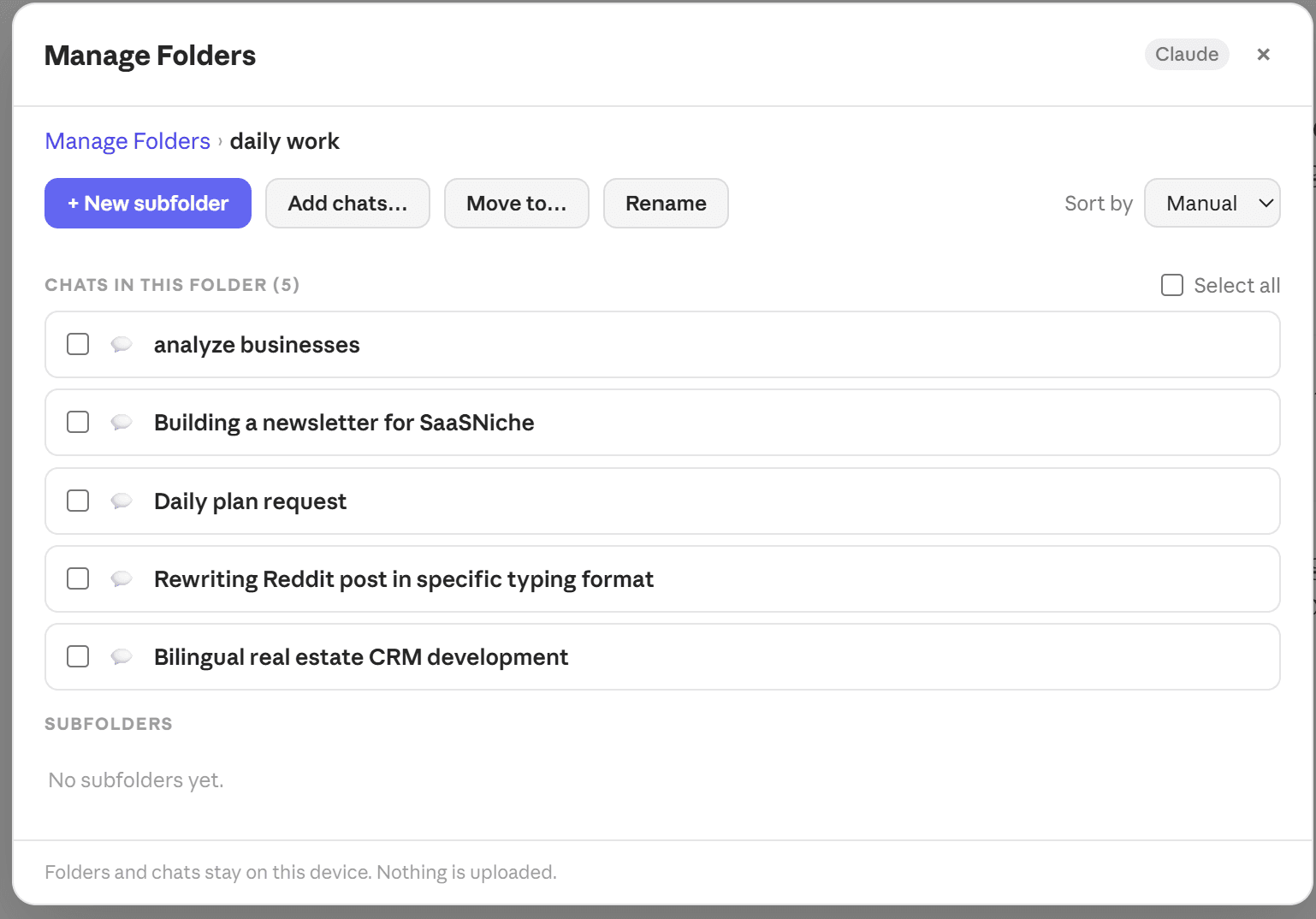
ChatPeer deletes each selected conversation from your ChatGPT or Claude account with the same request the site sends when you delete one by hand, then removes it from any folders it was in.
Click 'Select' in the panel header, click the chats to remove or use 'Select all', then Delete. A confirmation shows the count before anything goes.
Bulk delete and bulk remove-from-folder are free. Deleting cannot be undone; export first — ZIP export of a selection is premium.
Neither ChatGPT nor Claude makes it easy to clear out old conversations. You open each chat, find its menu, click delete, confirm, and repeat, one conversation at a time. After a few months of daily use that is hundreds of clicks, so most people never clean up at all, and the sidebar fills with test prompts, abandoned drafts and one-off questions that bury the chats worth keeping. ChatGPT offers a delete-everything switch, but that is all or nothing. ChatPeer adds the missing middle: turn on multi-select in its panel, click the conversations you want gone (or select all), and delete them in one action. It works the same way on chatgpt.com and claude.ai, it is free on every plan, and ChatPeer asks you to confirm before anything is removed.
Selecting conversations
Click 'Select' in the ChatPeer panel header to enter multi-select, then click conversations to add them to the selection. 'Select all' picks everything in view. A counter shows how many are selected, and clicking a conversation again takes it back out.
Deleting the selection
With your selection made, click Delete. ChatPeer shows a confirmation with the number of conversations about to go. Confirm, and each one is deleted from your ChatGPT or Claude account through the same request the site itself sends, then removed from any ChatPeer folders it was filed in.
Back up before you delete
Deleting a conversation removes it from your ChatGPT or Claude account, and it cannot be undone. If a chat might matter later, use 'Export selected' first: premium plans download the whole selection as a ZIP, one file per conversation in TXT, Markdown, JSON or PDF.
Other bulk actions
The same selection can be removed from its folders without deleting anything, which is free, or exported as a ZIP on paid plans. Multi-select turns a cleanup session that used to take an afternoon into a couple of minutes.
Questions about this feature
Yes. ChatGPT's own setting deletes every conversation at once. ChatPeer lets you pick exactly which ones go: select them in its panel and click Delete.
Yes. Multi-select and bulk delete work the same way on claude.ai and chatgpt.com.
No. Multi-select, bulk delete and bulk remove-from-folder are free. Bulk export as a ZIP is the only bulk action that needs a paid plan.
No. The conversations are deleted from your ChatGPT or Claude account. ChatPeer asks you to confirm first; export anything you might need before confirming.
Stop scrolling for it
Free to install. No account required.