Expert prompts, growing weekly
Full briefs rather than one-line instructions, with new ones added every week. Use one as-is on ChatGPT, Claude or Grok, or save it to your own library, shared across all three.
The catalogue is served from our side because it grows continuously, and nothing goes with the request beyond the licence key that decides which prompts you can open. There is no per-prompt callback and no record of what you use.
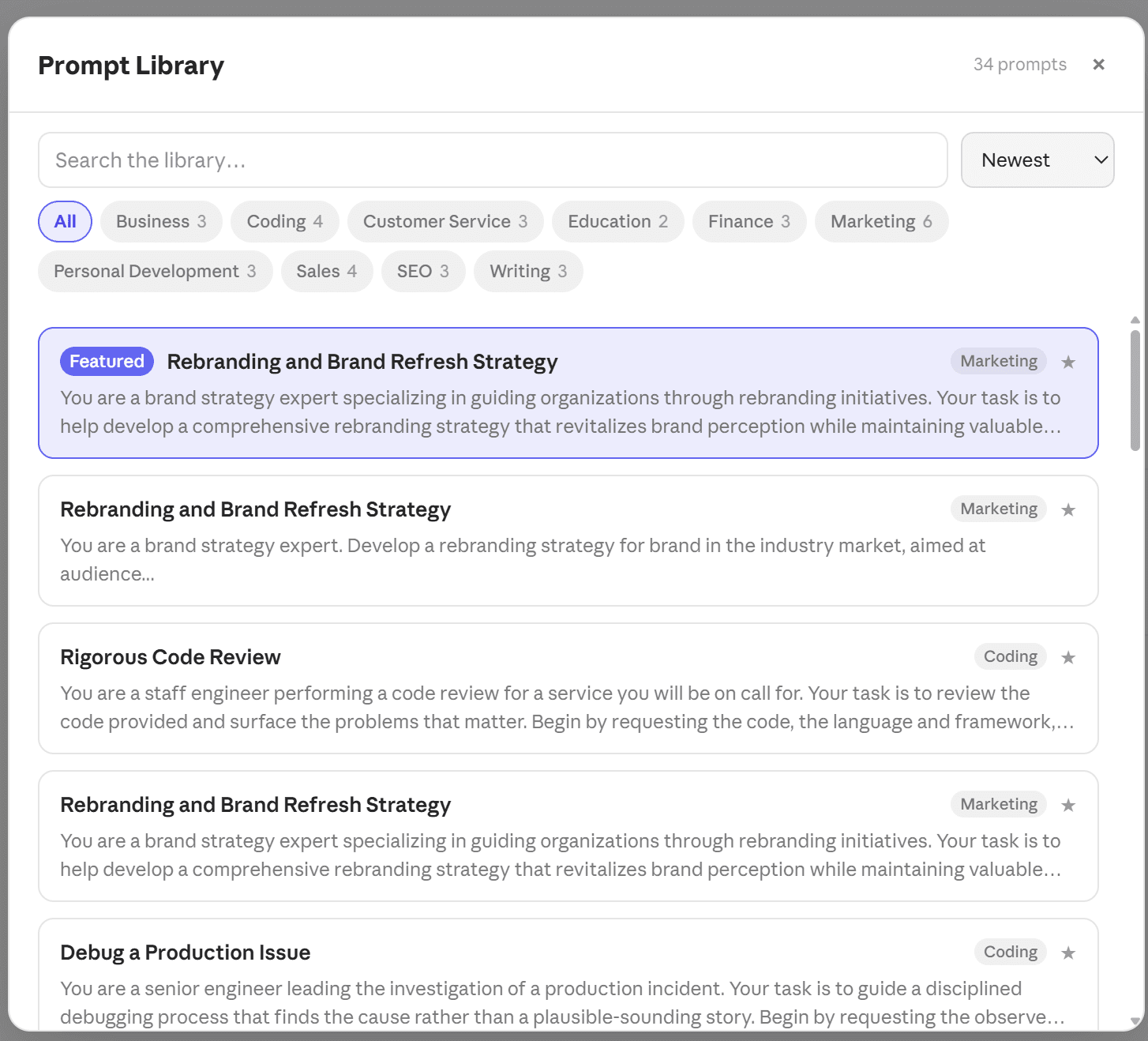
Open the library from the ChatPeer menu. Category chips carry counts, search covers the whole catalogue, and a prompt expands in place so you can read it before deciding. 'Use prompt' drops it into the composer; 'Save a copy' puts it into Manage Prompts to edit.
A selection in every category is free; the rest come with premium, and locked prompts still show their title and category. Browsing needs a connection — anything saved into Manage Prompts is local and works offline.
Most people who use AI seriously are writing their own prompts from scratch every time, and the difference between a mediocre answer and a genuinely useful one is usually the prompt rather than the model. ChatPeer ships a curated library of expert prompts covering the work people actually do — campaign planning, discovery calls, code review, technical audits, budgeting, lesson planning. Each one is written as a full brief rather than a one-line instruction: it tells the model what role to take, what information to ask you for first, and exactly how to structure its answer. Browse by category, search the whole catalogue, and drop a prompt straight into the composer on ChatGPT, Claude or Grok, or save a copy into your own library, which is shared across all three, and edit it to fit how you work. New expert prompts are added every week; a selection is free in full, and the rest show their titles until you unlock them with a paid plan.
Browsing the library
Open the library from the ChatPeer menu. Categories are shown as chips across the top with a count each, so you can see the whole taxonomy at a glance rather than opening a dropdown to find out what exists. Search covers every prompt in the catalogue, and results can be sorted by newest, most used, or alphabetically. Clicking a prompt expands it in place so you can read the whole thing before deciding — there is no separate preview pane to squint at.
Use it, or make it yours
Every prompt has two actions. Use prompt drops it into the composer ready to send. Save a copy puts it into Manage Prompts, your own collection, where you can edit the wording, change the category, or turn it into a chain. The library is a source you read from; your own prompts are the ones you keep. Prompts that contain fill-in values ask for them in a short form before insertion rather than leaving you to find and replace them by hand.
Favourites
Star the prompts you come back to and they are marked wherever they appear. Favourites are stored on your device — the library is a catalogue we serve, but which prompts you keep returning to is nobody's business but yours.
Free and premium prompts
A selection of prompts across every category is free on every plan. The rest are included with premium. Locked prompts still show their title and category, so you can see exactly what the full catalogue holds rather than a blurred rectangle — and new prompts are added every week without needing an extension update.
Nothing is tracked
The library is fetched from our servers because it is a catalogue that grows, but nothing about you goes with the request beyond the licence key that determines which prompts you can open. There is no per-prompt callback, no record of which prompts you use, and no profile of what you work on. Your conversations are never involved at any point.
Questions about this feature
The catalogue grows continuously, and new prompts appear without you needing to update the extension. A selection in every category is free; the rest are included with premium.
Not in place — the library is shared. Use Save a copy and the prompt lands in Manage Prompts, where it is yours to edit, recategorise, or extend into a chain.
No. Favourites are stored on your device, and there is no per-use callback to our servers. The only thing sent when you open the library is the licence key that decides which prompts you can read.
Browsing needs a connection, because the catalogue lives on our servers rather than in the extension. Anything you have saved into Manage Prompts is local and works offline.
Stop scrolling for it
Free to install. No account required.