Claude conversations, out in four formats
Claude's own export is one JSON archive of your whole account. ChatPeer adds a button to the conversation header that writes Markdown, PDF, JSON or plain text straight to your downloads.
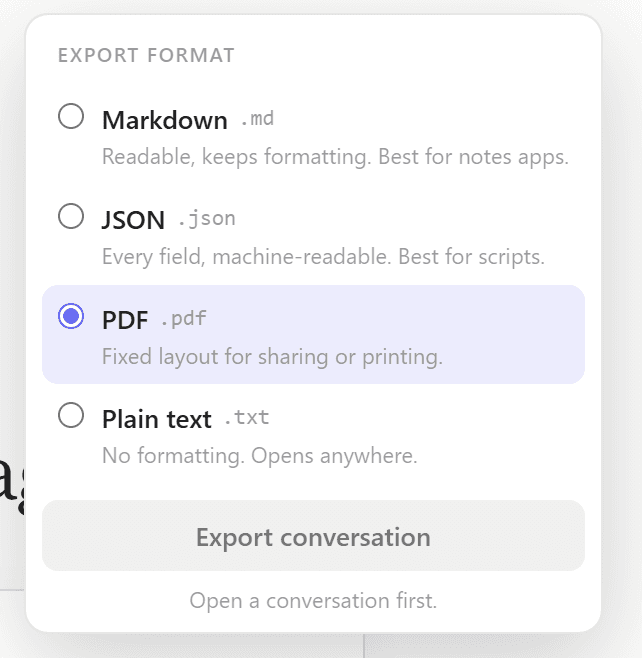
Export reads the local message store ChatPeer already keeps and renders the file in the page — the PDF included, through a writer built into the extension. Nothing is uploaded to produce it, and it works with no connection.
Open a conversation, click Export in the header, pick a format. Markdown carries YAML frontmatter, JSON keeps every field, PDF colour-codes each speaker and adds timestamps and page numbers. Premium can select several conversations and take the lot as a ZIP.
Free exports plain text, one conversation at a time. Markdown, PDF, JSON and bulk ZIP export are premium. Image and file attachments are not included.
Claude's built-in export (Settings → Privacy → Export data) emails you your whole account as JSON. There's no way to save just one conversation as a readable file, so most people copy-paste, losing formatting, message attribution and timestamps. ChatPeer adds an Export button to Claude's header toolbar. Click it, choose your format — plain text, Markdown with YAML frontmatter, structured JSON, or colour-coded PDF — and the file downloads immediately. The export pulls from the local message store that ChatPeer already maintains, so it works even offline. Markdown, JSON and PDF export are premium features; plain text is available on the free tier.
Markdown export
The Markdown format includes a YAML frontmatter block with the conversation title, platform, export timestamp, and message count. Each message becomes a second-level heading (## Human or ## Assistant) with the message body below, separated by horizontal rules. This format imports cleanly into Obsidian, Notion, and most other note-taking tools that accept Markdown.
PDF export
PDF export generates an A4 document with colour-coded vertical accent bars — blue for your messages, violet for Claude's responses. Each message includes a timestamp. Page numbers appear at the bottom. The PDF is generated entirely in your browser by a writer built into the extension — no third-party library, no network request, and no file sent to any server. It uses a core PDF font, so it covers English and the Western European languages; for Arabic, Hebrew, Cyrillic, Greek or CJK, export as Markdown instead — ChatPeer will tell you rather than let you download a broken file.
JSON export
The JSON format is ChatPeer's canonical interchange format: { version, conversation, messages[] }. It preserves every field including message IDs, roles, creation timestamps, and parent message references. Use this format if you want to import conversations into another tool or process them programmatically.
Bulk export
Premium accounts can select multiple conversations and export them all as a ZIP file, one file per conversation in the chosen format. Useful for archiving a project or migrating to a different tool.
Questions about this feature
Yes, with a premium account. Select conversations in the folder tree, choose 'Bulk export', pick your format, and download a ZIP. Free accounts export one conversation at a time.
Yes. ChatPeer exports from its local message store, not from Claude's servers. As long as the conversation was synced before you went offline, you can export it.
No. The file is generated in your browser and downloaded directly to your filesystem. ChatPeer doesn't store, upload, or log exported content.
Stop scrolling for it
Free to install. No account required.