Folders in Grok's sidebar
Grok's history is one newest-first list. ChatPeer adds a nested, colour-coded folder tree above it and files the chat you're reading in one click — separate from Grok's Projects.
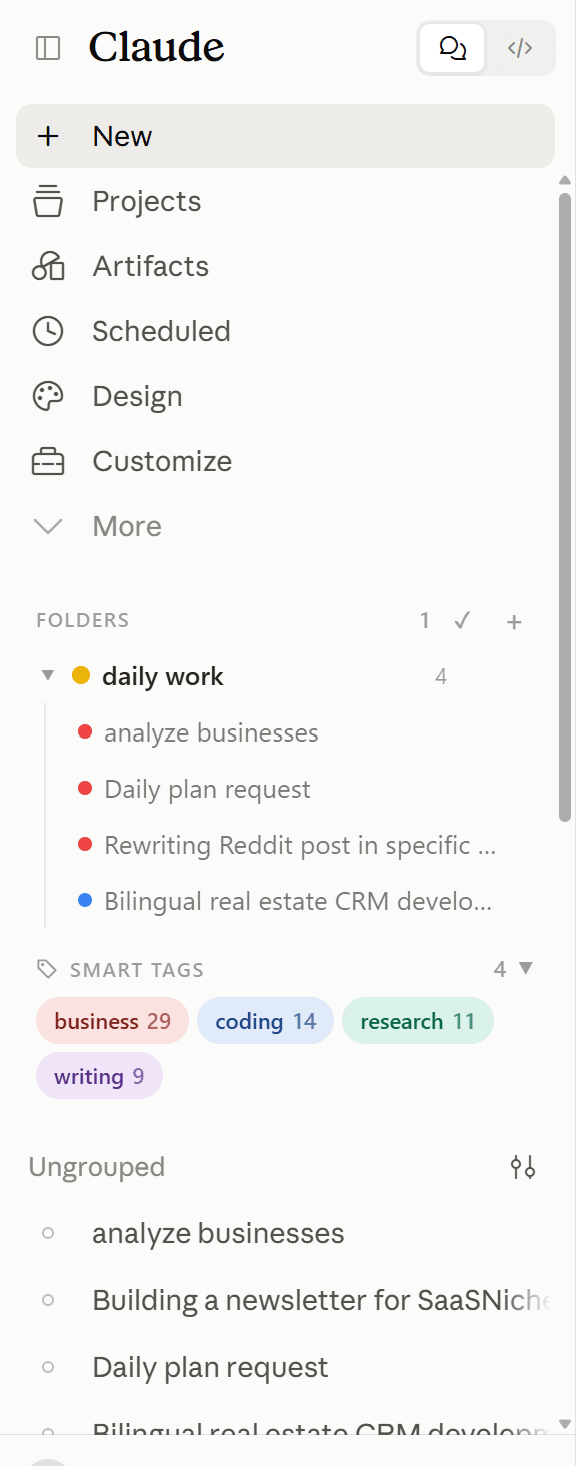
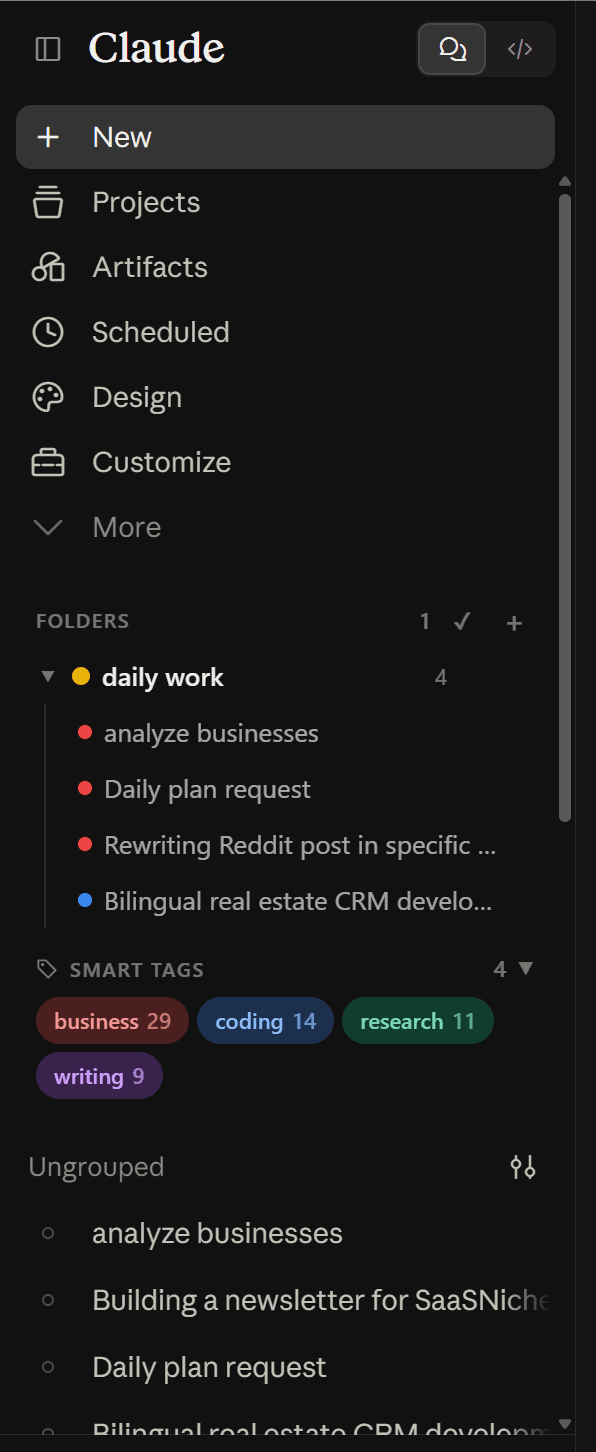
The tree is drawn into grok.com's sidebar and kept in your browser's IndexedDB. Grok gets its own tree, apart from ChatGPT's and Claude's, and nothing in your Grok account or its Projects is moved or changed.
Click '+' to create a folder and give it a colour. Open a conversation and click '+' on the folder it belongs in, or use 'Add chats…' to file a batch from a searchable list. Folders nest and drag to reorder.
Free keeps 2 folders, subfolders included; any paid plan removes the cap. Clearing site data for grok.com clears the tree with it.
Grok is quick to start a conversation with, and that is exactly why the history fills up: a question about a bug, a draft email, a trip plan, a long research thread, all in one newest-first list. Grok's Projects help when you're setting up a workspace for one task, with its own files and instructions, but they aren't a way to sort the conversations you've already had. ChatPeer adds a folder tree to grok.com's sidebar. Create a folder for a client, a topic or a month, colour it so you can spot it at a glance, and file the chat you're reading with one click. Folders nest, so a project can hold a folder per stage. The whole structure lives in your browser's IndexedDB; nothing about it is sent to xAI or to us, and your Grok account is left exactly as it was.
Your first Grok folder
The ChatPeer panel sits above Grok's own chat list. Click '+', give the folder a name — a client, a codebase, a subject you keep coming back to — and pick one of eight colours if you want one. Grok gets its own folder tree, separate from the ones ChatPeer keeps for ChatGPT and Claude. Free accounts can keep 2 folders; any paid plan lifts the limit on all three platforms.
Filing as you go
The moment you realise where a conversation belongs is usually while you're reading it. Click '+' on that folder and it's filed. If you're working through a backlog instead, 'Add chats…' opens a searchable list of your Grok conversations so you can tick off a batch in one pass. Grok's own list doesn't change either way — the chat stays where it was, and ChatPeer simply remembers which folder you put it in.
Nesting and ordering
Right-click a folder, or use the '⋮' on its row, and choose 'New subfolder'. Drag a folder onto a sibling to reorder it, or onto another folder to move it inside; 'Move to…' does the same without dragging and only offers destinations that make sense. Keep your own order, or switch to sorting by name or by most recently used.
Manage Folders
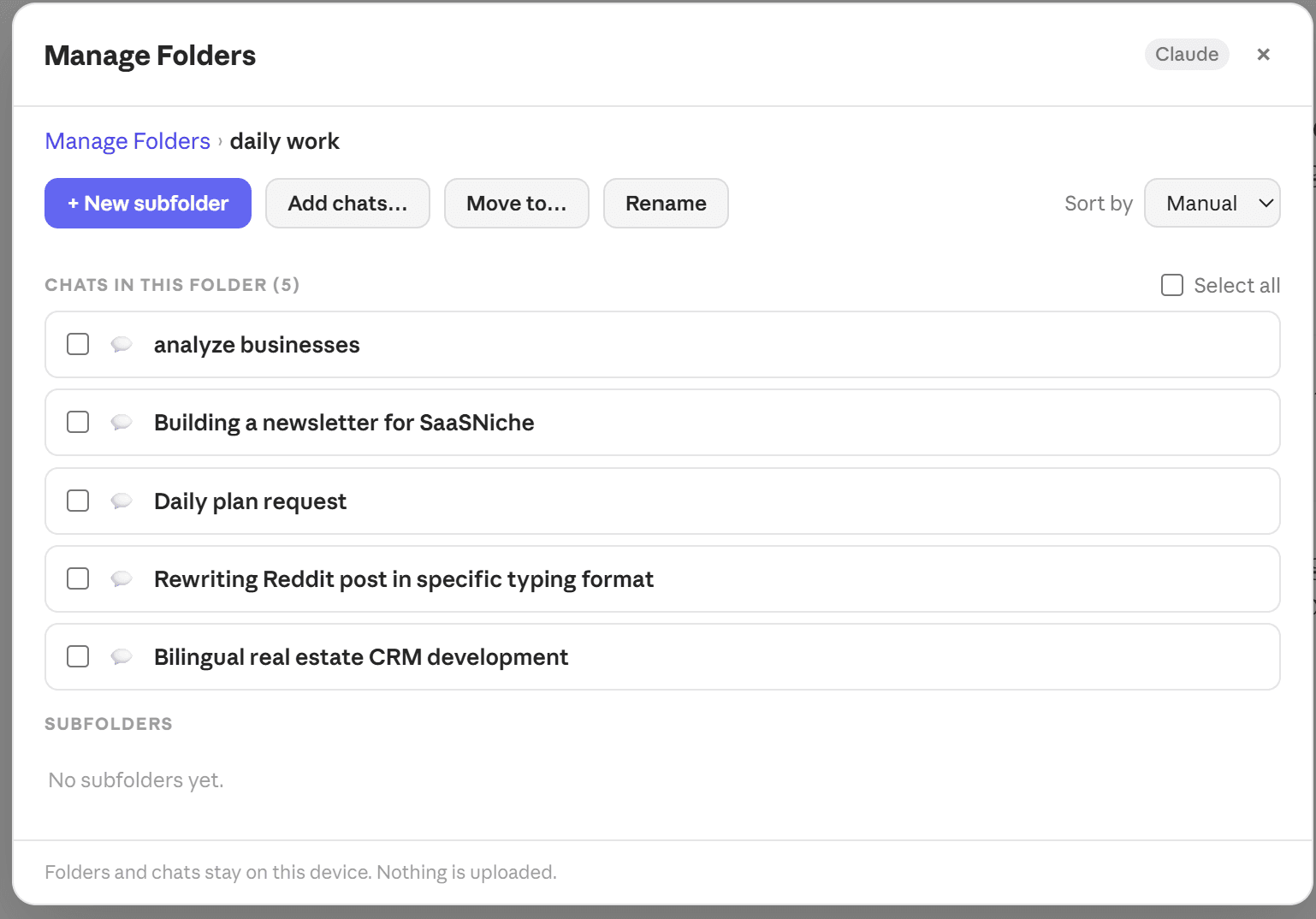
When the sidebar feels too narrow for a reorganisation, open Manage Folders from the '⚙' in the panel header or from the floating launcher. It shows one folder at a time at full width — a breadcrumb, the chats in it, its subfolders, and the rename, move and new-subfolder actions together on one row.
Alongside Grok's Projects
Keep using Projects for what they're good at: a set of files and instructions Grok should work from. ChatPeer's folders sit on a different layer. A chat can live in a Project and in a ChatPeer folder at the same time, and filing it never moves it out of anything on Grok's side.
Questions about this feature
No. The folder tree is stored in your browser's IndexedDB. Your conversations, and any Projects they belong to, stay exactly as they are on grok.com.
No. Each platform has its own tree, so a Grok folder never clutters your Claude sidebar. Every paid plan — Monthly, Lifetime or All Access — unlocks unlimited folders on all three.
Yes, to any depth. Every folder and subfolder counts towards the free tier's limit of 2.
Clearing site data for grok.com clears the IndexedDB that holds the tree, so the folders go with it. Uninstalling and reinstalling ChatPeer without clearing site data keeps them.
Stop scrolling for it
Free to install. No account required.